
|
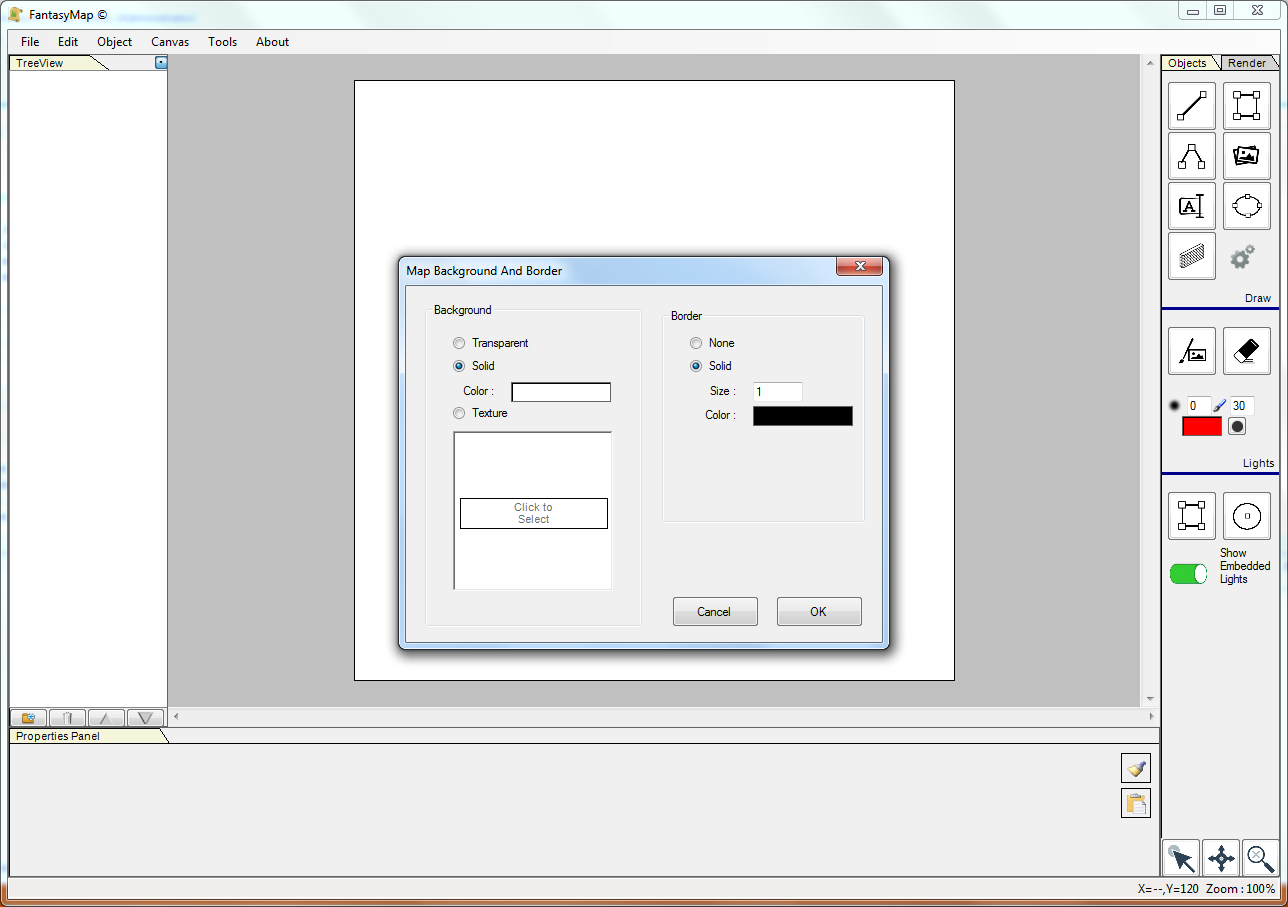
From the canvas menù, open Border && Background command. A small popup window will show: on the left side there are the basic setting for the background, while on the right side the configuration of the border. |
|
|
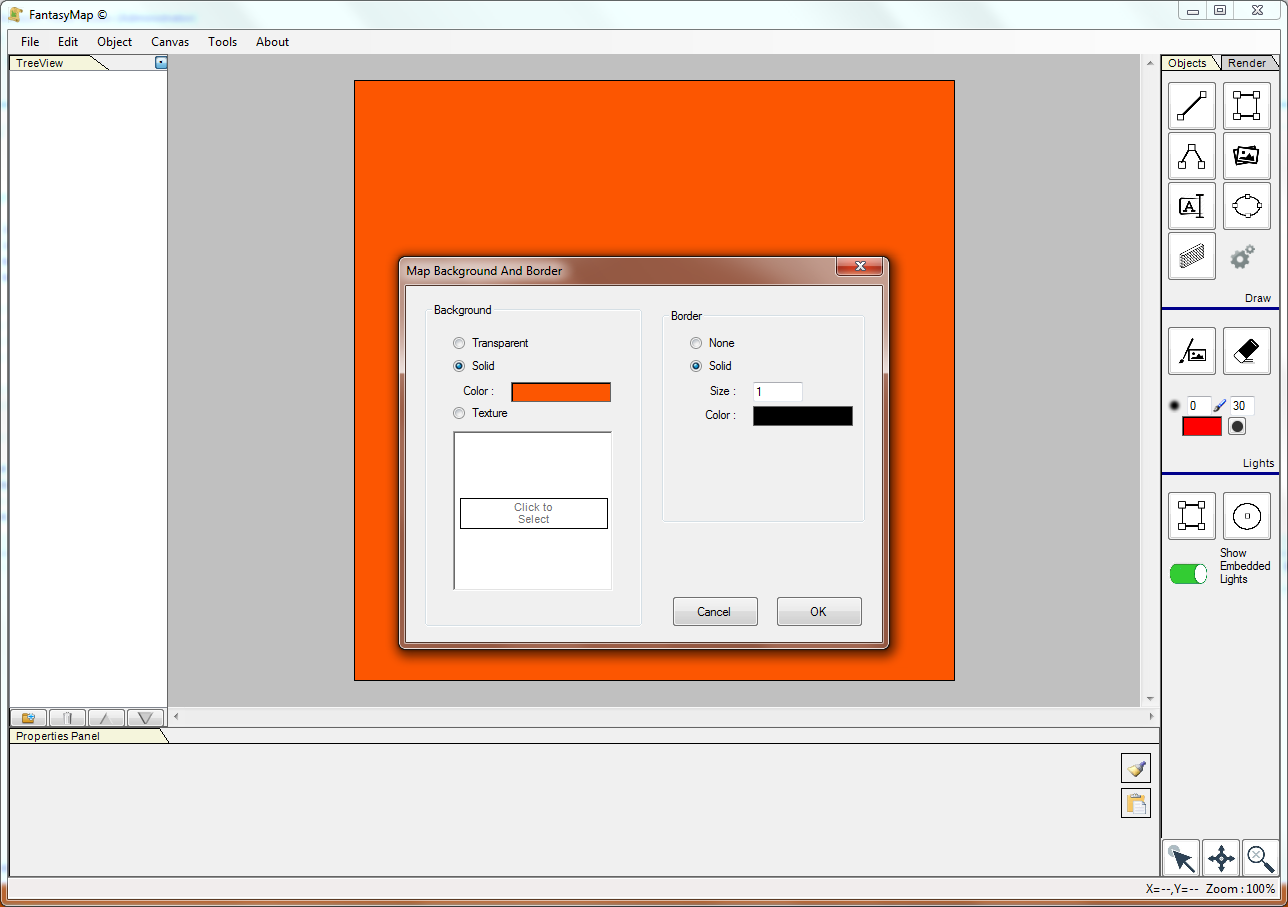
Try to change the background color (normally is solid/white for new maps) by clicking
on the white colored rectangle near the label color: choose a color from the color picker
and click ok. Close the Border & Background map to apply the changes.
|
|
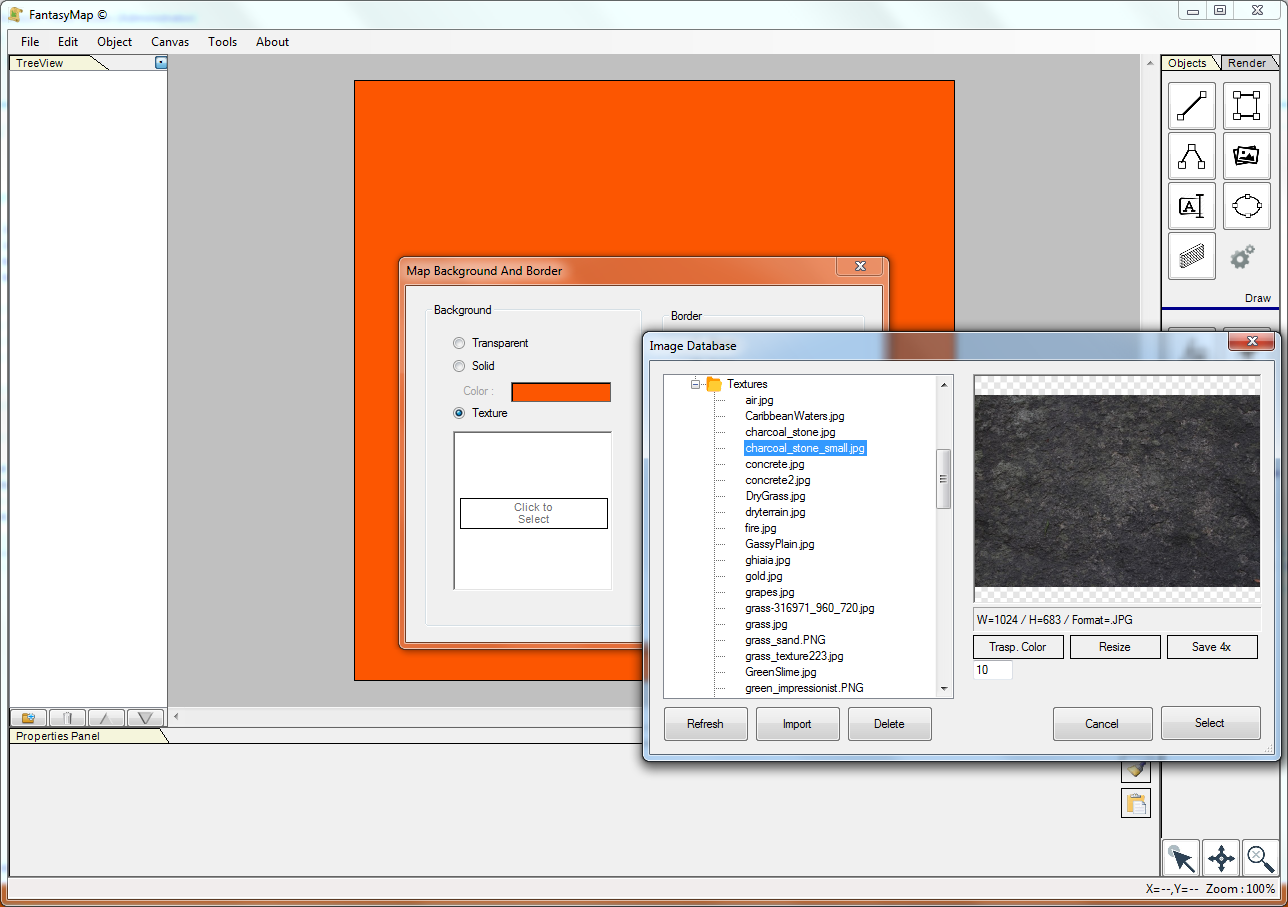
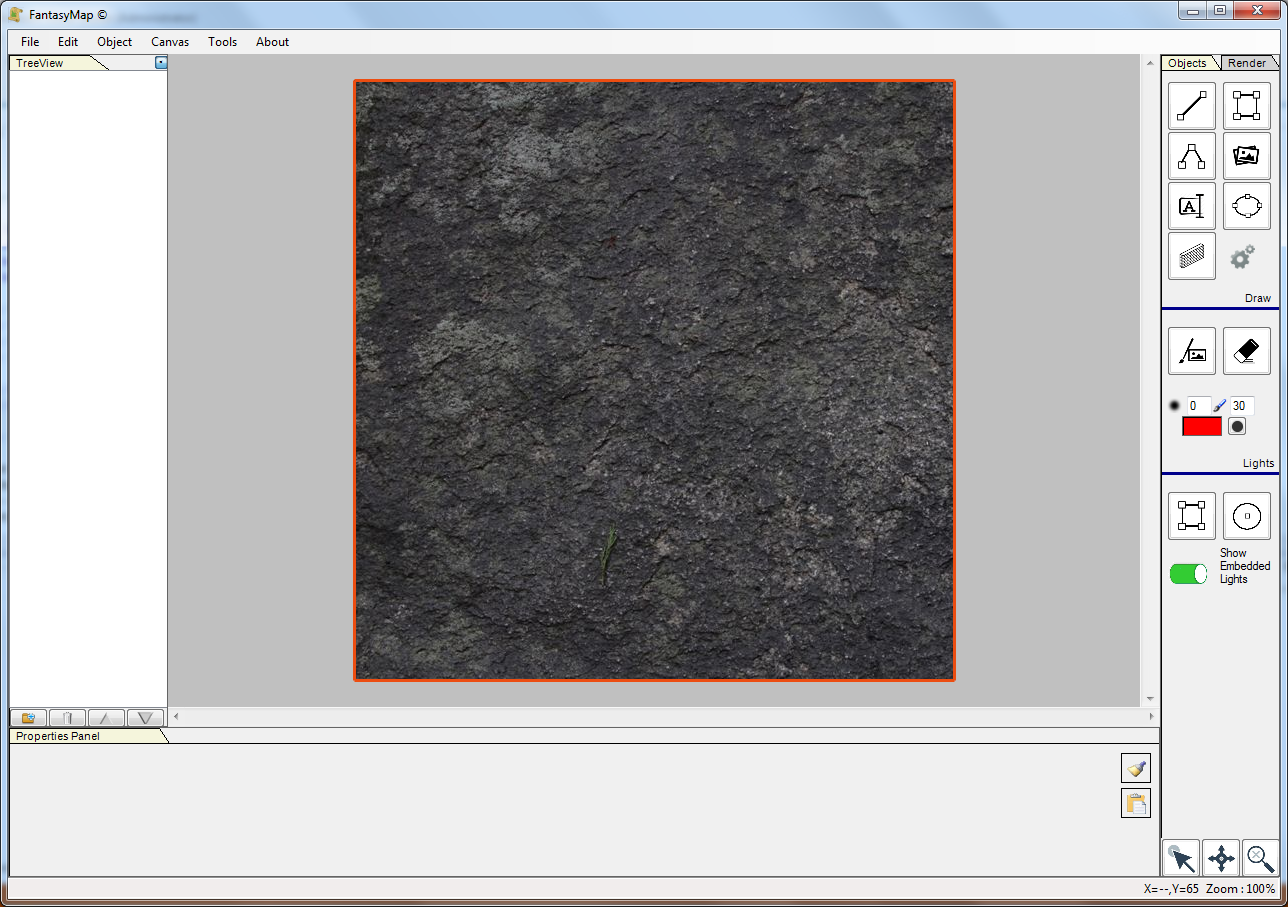
Try now to select Texture as background style and click on the white rectangle below The image database window will popup, and you will be able to choose an image for your background. The image is tiled,and you can ajust it (flip, rotate and zoom) right clicking on it with the mouse. If you do not see any image, it could be that you do not have one or FantasyMap has a wrong configuration for the database root folder. Check it on the configuration section under the file menu. Once finished close the border and background configuration window in order to apply changes. |
|
|
Try now to change map border, changing the color and the size of it. Open again the border and background configuration window and select a different color and size for the border. Close the window in order to apply the new configuration. |