
|
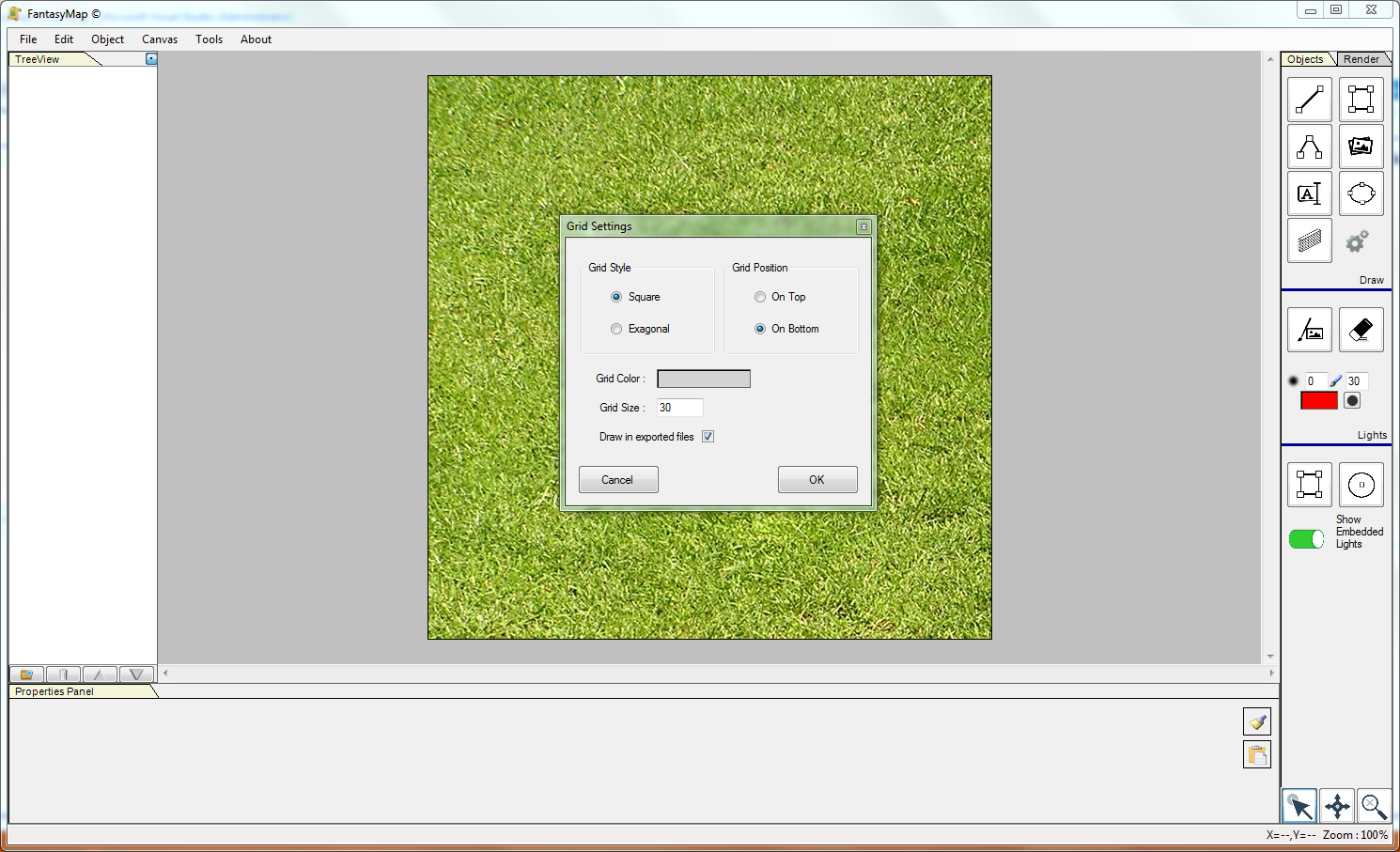
First of all, create a new map as seen on previous tutorials, and put a grass background on it. From the upper menù, choose Canvas - Grid Setting to open the grid configuration popup. Inside this window you can choose which kind of grid you need (square or hexagonal), if such grid must stay under or over the drawing objects you are going to place, and if such grid must be exported, at the end, in the final png file. you can also choose the grid color and size (in pixels). |
|
|
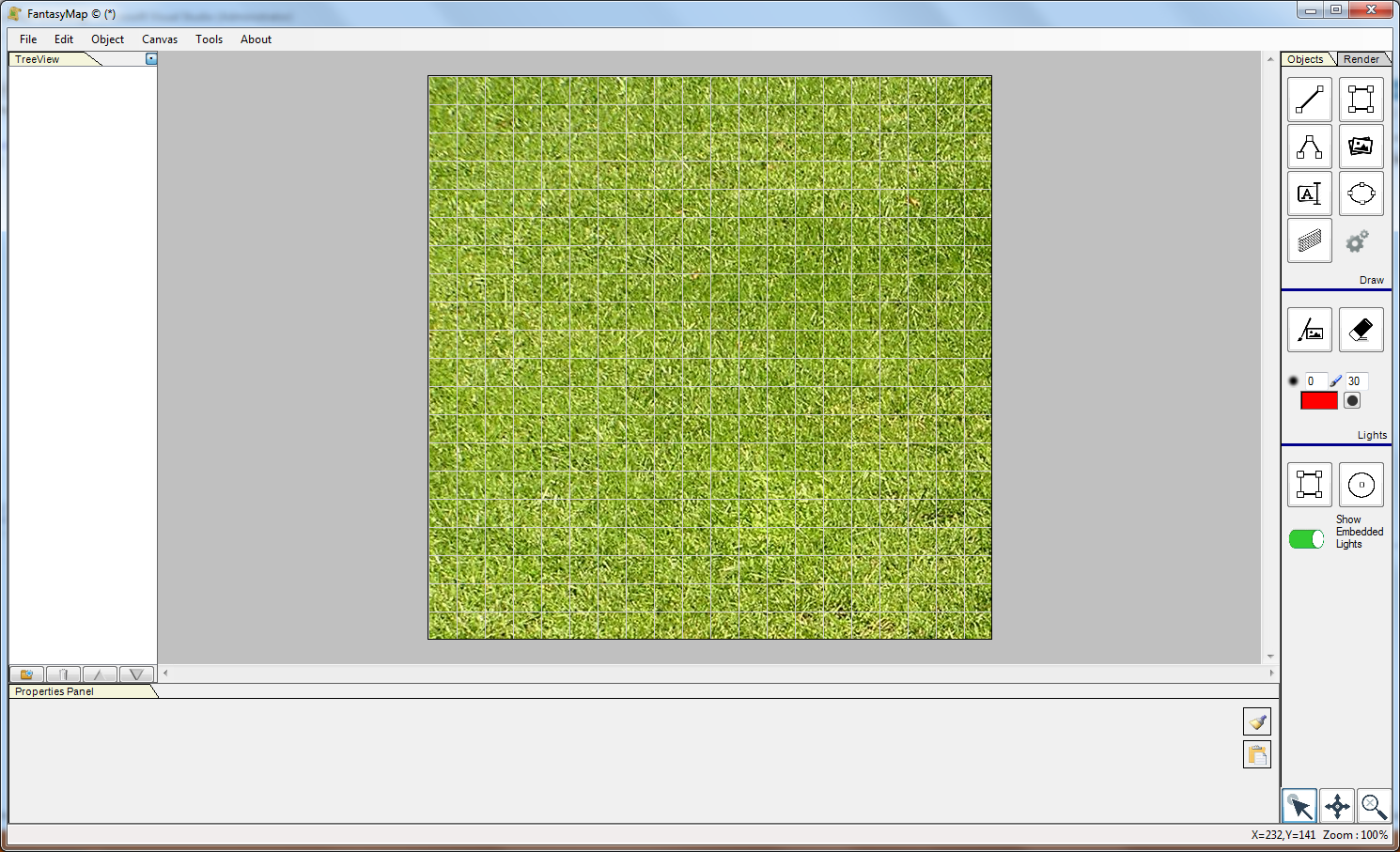
From the upper menù choose Canvas - Show Grid in order to show your configuration. Grids are always present, it's up to you
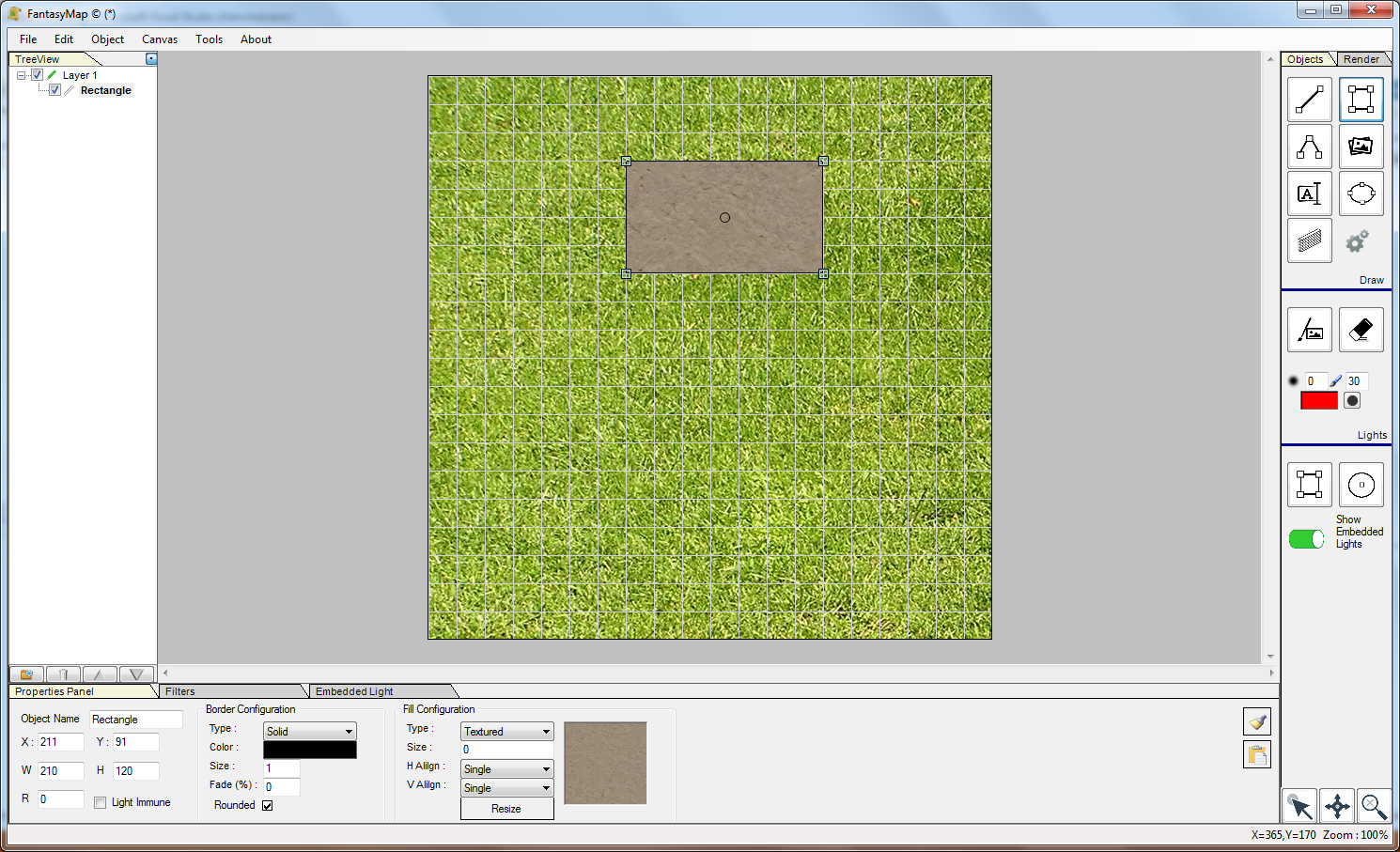
to configure it and make it visible or not. Like this, grid is only a visual aid. Go again in the upper menù and enable Canvas - Snap to Grid option: try now to insert a rectangle into the map. You'll discover that every insertion point of your object will be somehow forced to start from a grid cross. |
|
Draw a rectangle and put on it a concrete texture, like an altar in the middle of a grass field. We'll see later
how to improve a little bit the result with some drop shadow effect. Grid are very effective inside building, where often walls and rooms are always in a rectangular shape of the same size. |
|
|
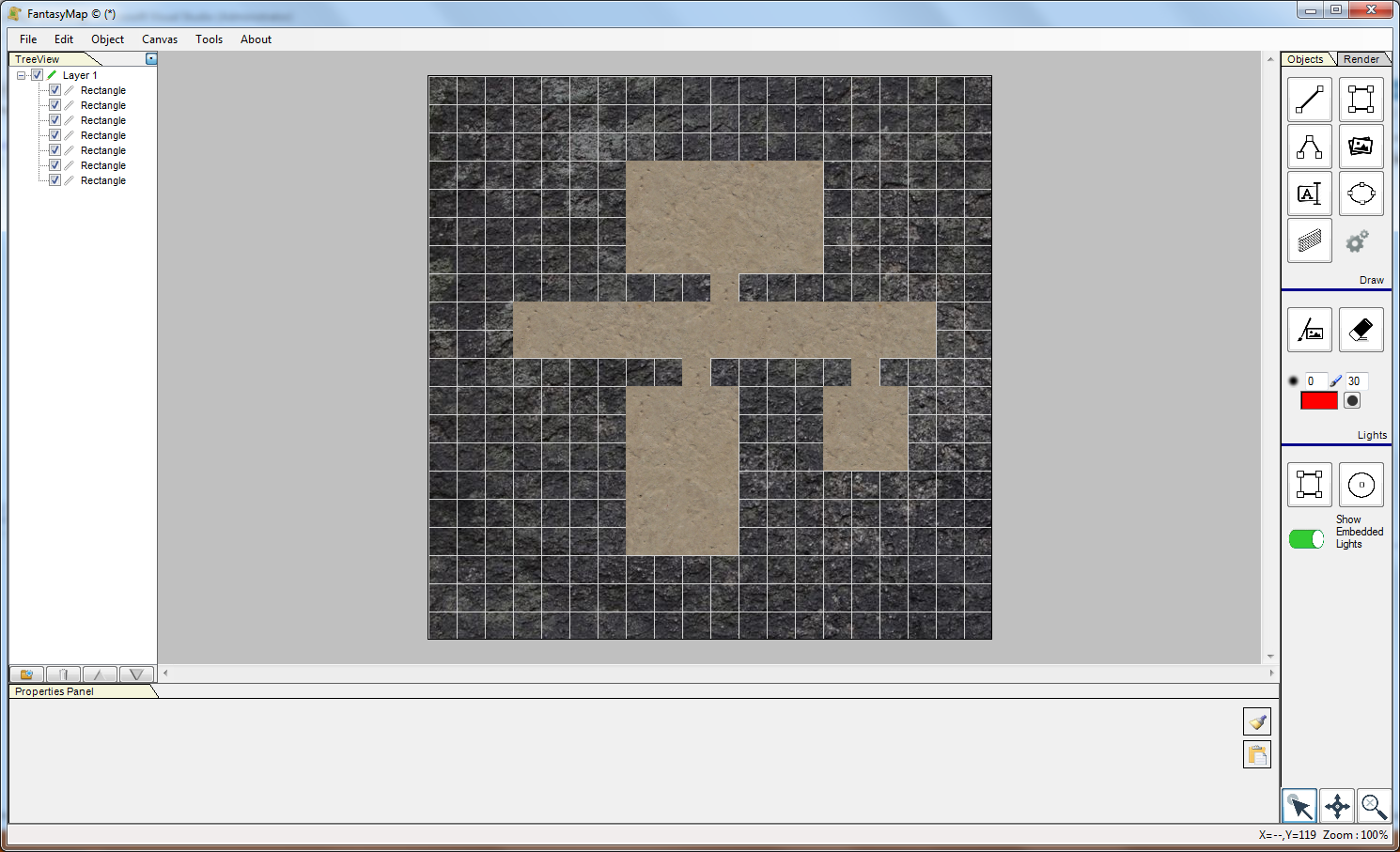
Using a dark background, you can easily put brighter rectangles in order to form corridors,
rooms and halls. Normally, this is the basic for the creation of a building. Next, we'll insert other furniture like beds, chairs, lights, and so on. This time, without snap to grid or without any grid. |
|
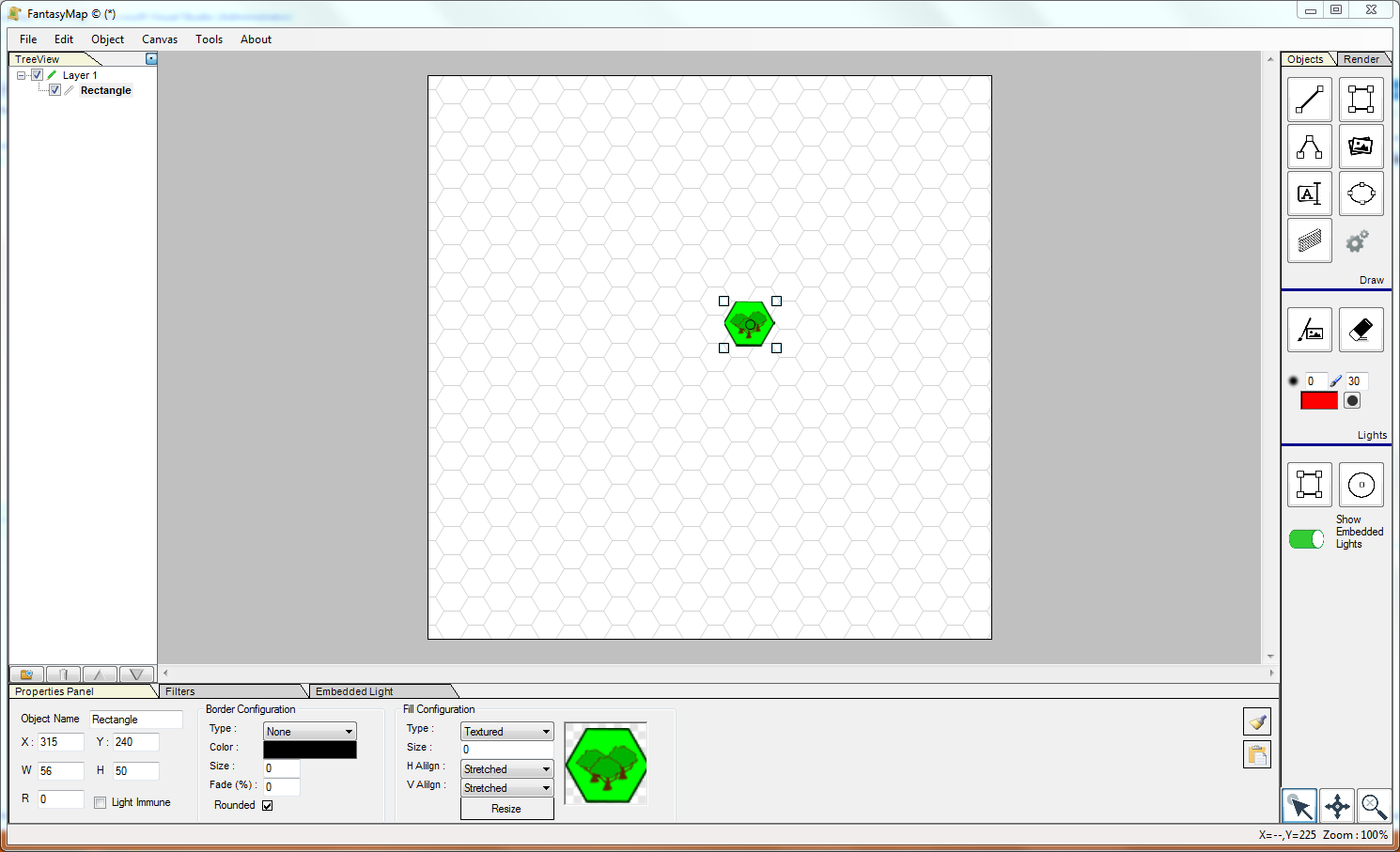
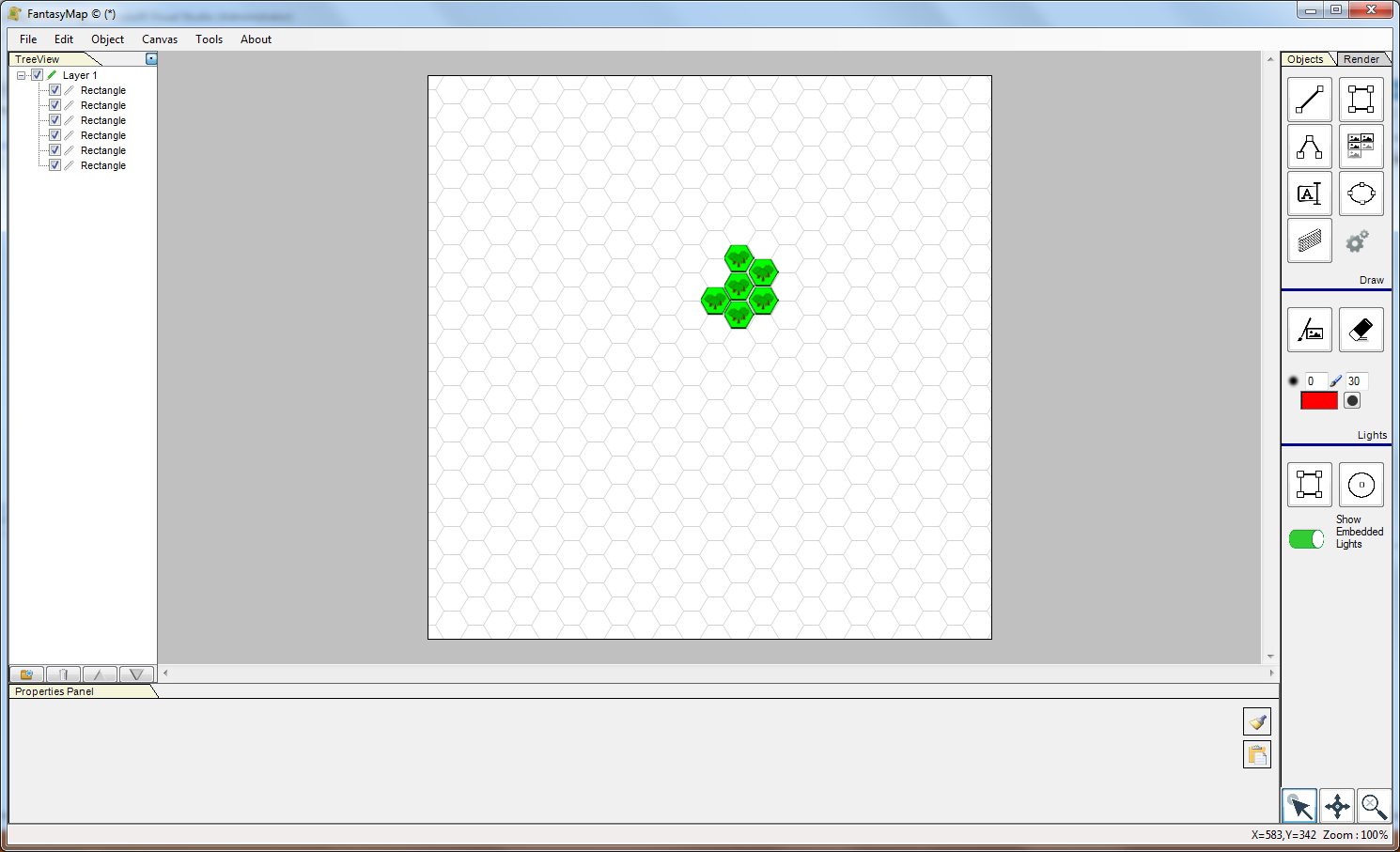
Grids can be also hexagonal, for land maps. Once you have a complete set of hexagonal icon, you can place them inside hex like in a 2 years old toy. But... wait a second. My icons are not of the same size of the grid, it can't work. Yes, it will work if you switch the image insertion mode into grid insertion. Right click on the image insert tool  And you'll see it change to the image grid insertion mode  |
|
|
Try now to insert an hexagonal icon into the map, and you'll see the software will automatically resize your icon in order to fit
the hexs. |