
|
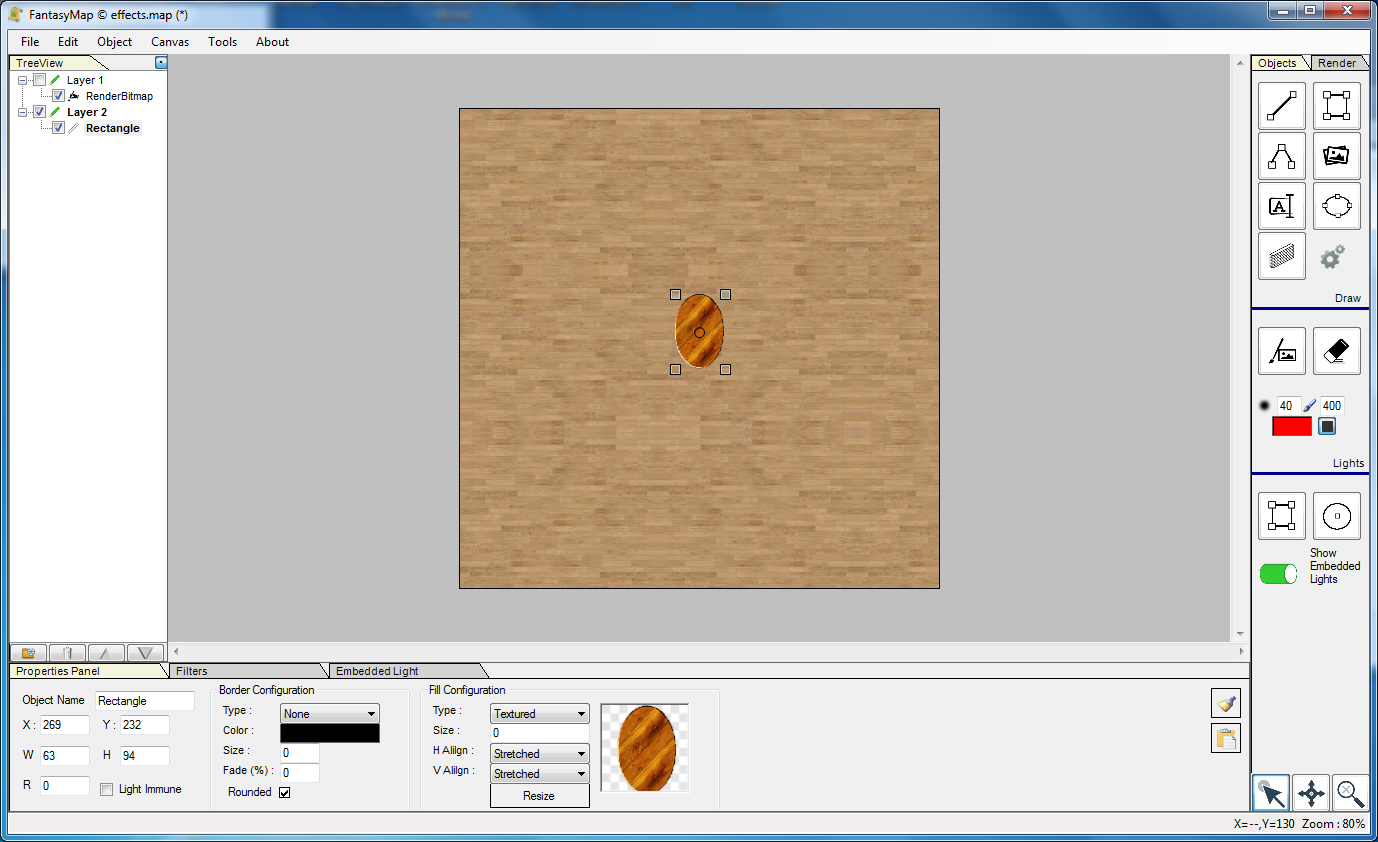
First of all, create a new map as seen on previous tutorials: put a wooden floor on the background and an oval table in the middle of the room. This is very plain, the depth of the design cannot be perceived. |
|
|
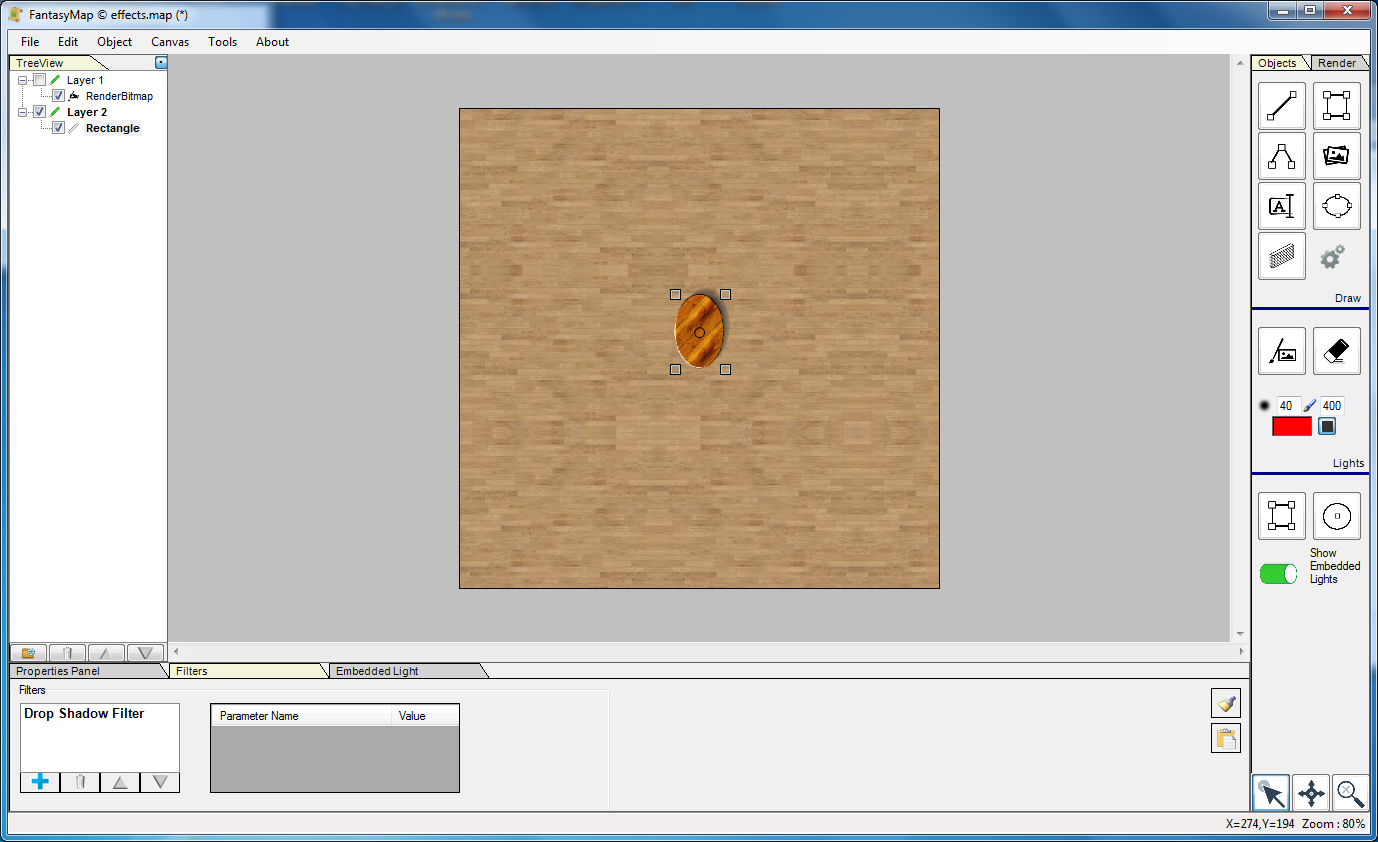
Keep the table selected, and go to the filter tab in the property panel at the bottom of the screen. Add a Drop shadow effect to the object. You'll see the table dropping a dark shadown on the background below. Change filter parameters in order to rotate the shadow in the direction you prefer. You can also change shadow lightness and dimensions. |
|
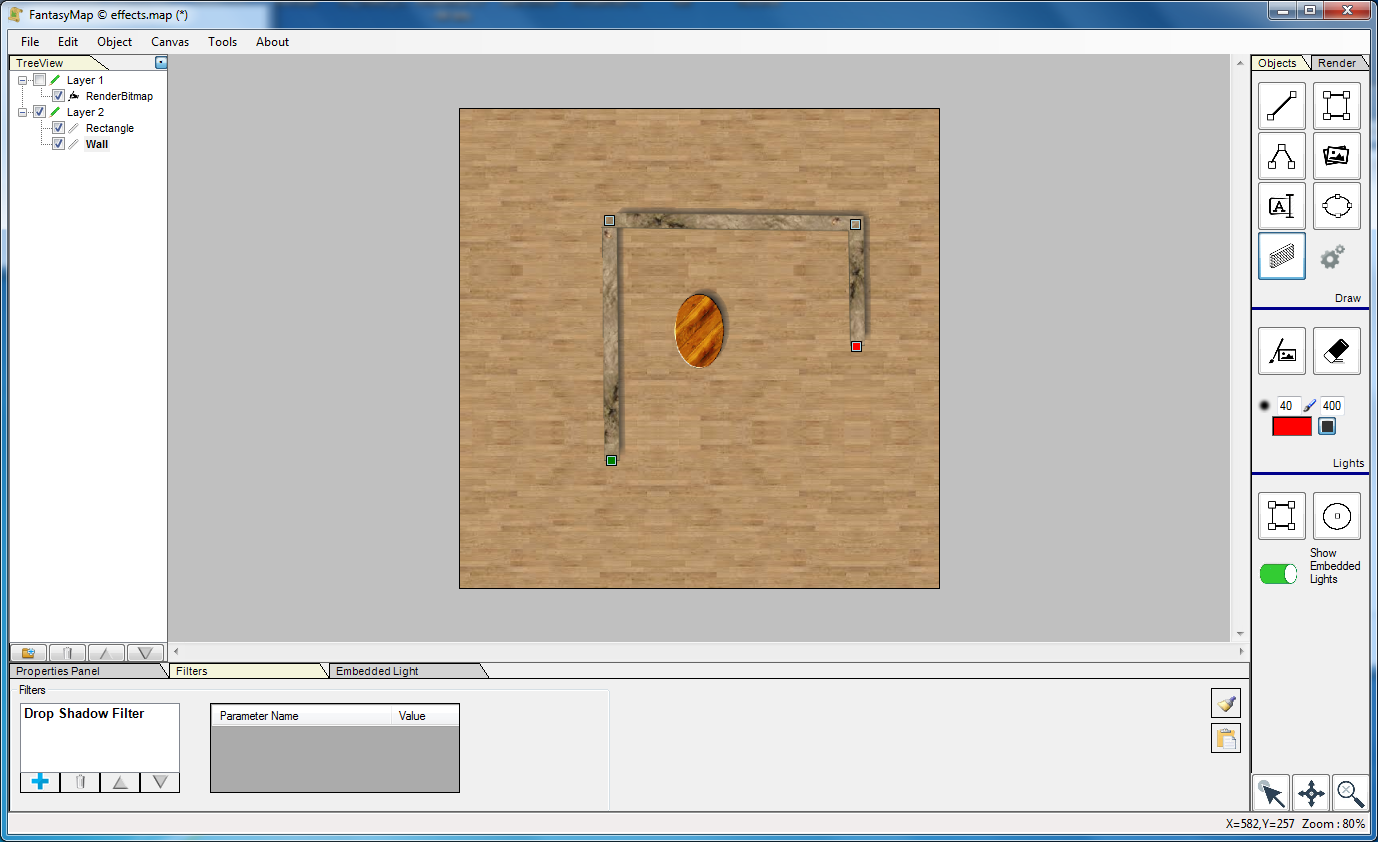
Effects can be added to all objects like walls (we'll see in the next tutorials how do they work). |
|
|
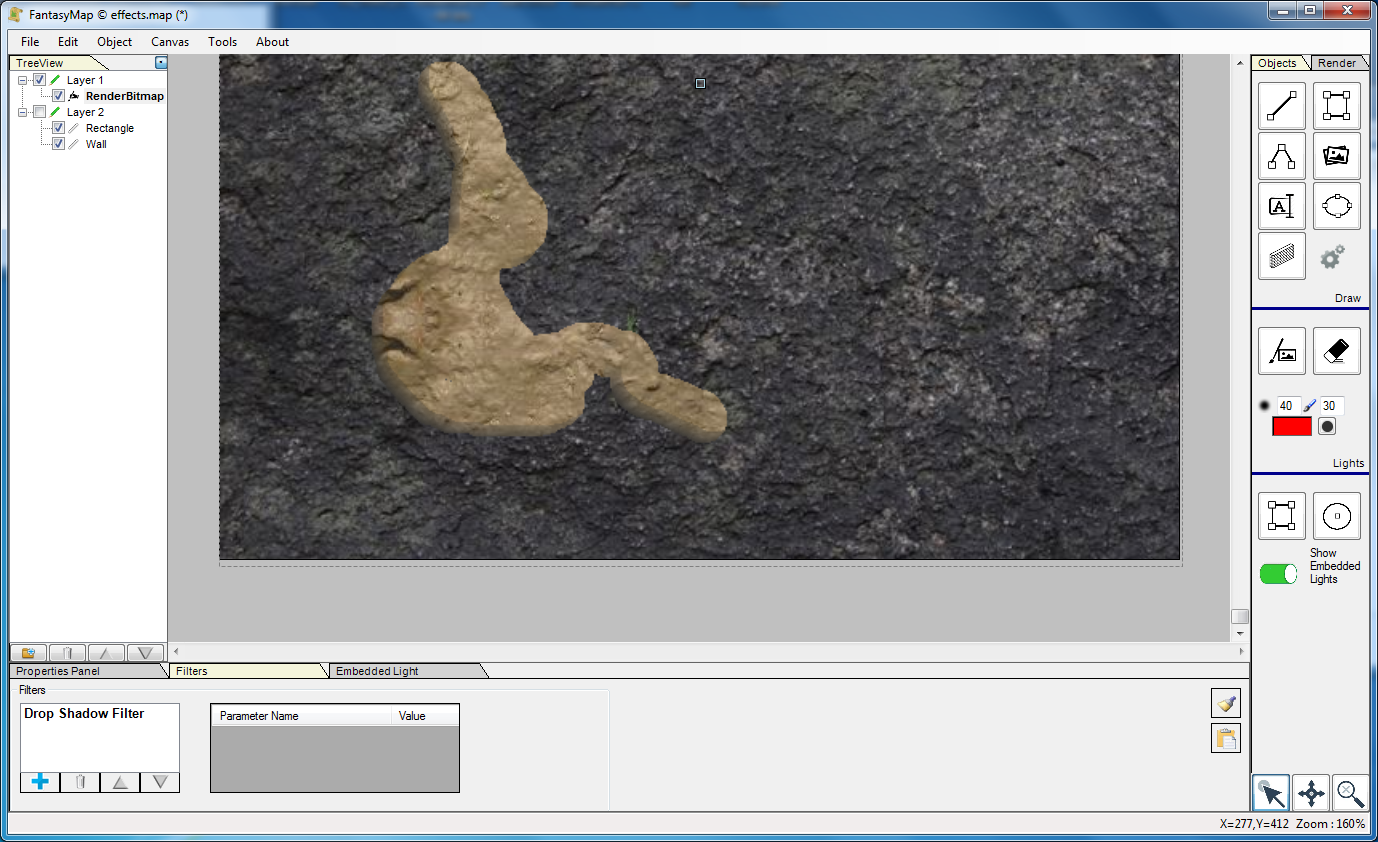
Drop shadow effect is often used to create a cavern (using render bitmaps) with a minimum height effect.
You can also copy/paste filter configuration with the same buttons of drawing properties (but in this case you
will paste only filter configuration)
|