In this tutorial we will explain how to manipulate object, converting them to bitmap, changing colors,
mergin them. There are several point to understand so let's start...
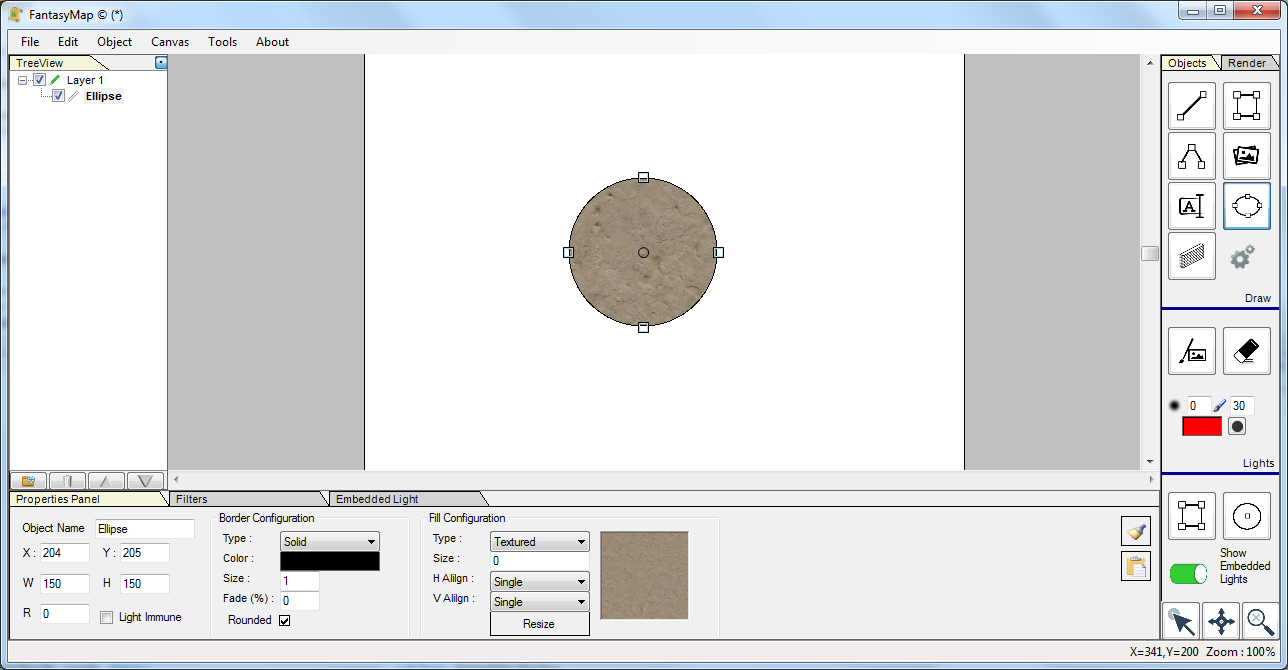
First of all, create an empty new map and draw a circle (you'll draw an ellipse, then change
width and height at the same value, ex. 150px).
Change background to stone carving texture. Eventually right click on the texture painting onproperty panel
and change zoom factor using mouse wheel.
|
|
|
|
|
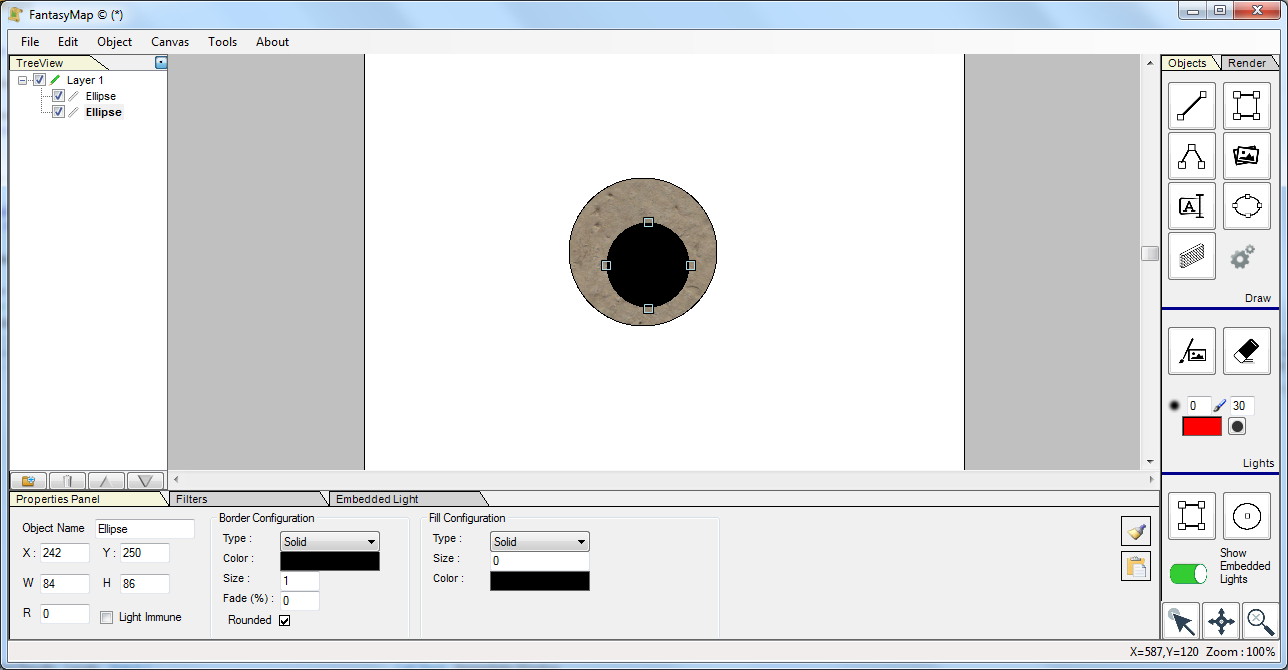
Draw another ellipse, put 135 as width and height (so it will become a circle a little smaller than
the previous one).
|
|
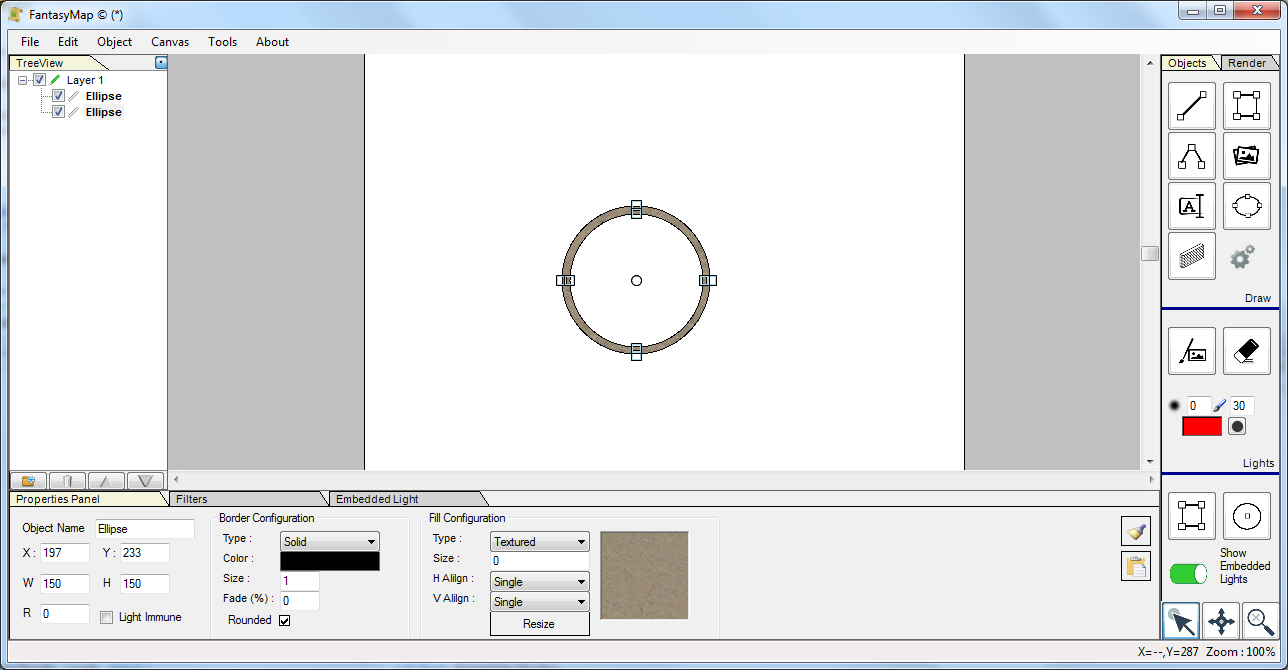
Set a white background for this second circle. Select both (keep CTRL key pressed) and use the Object->Align->Center
function to align the two circle in the same center.
|
|
|
|
|
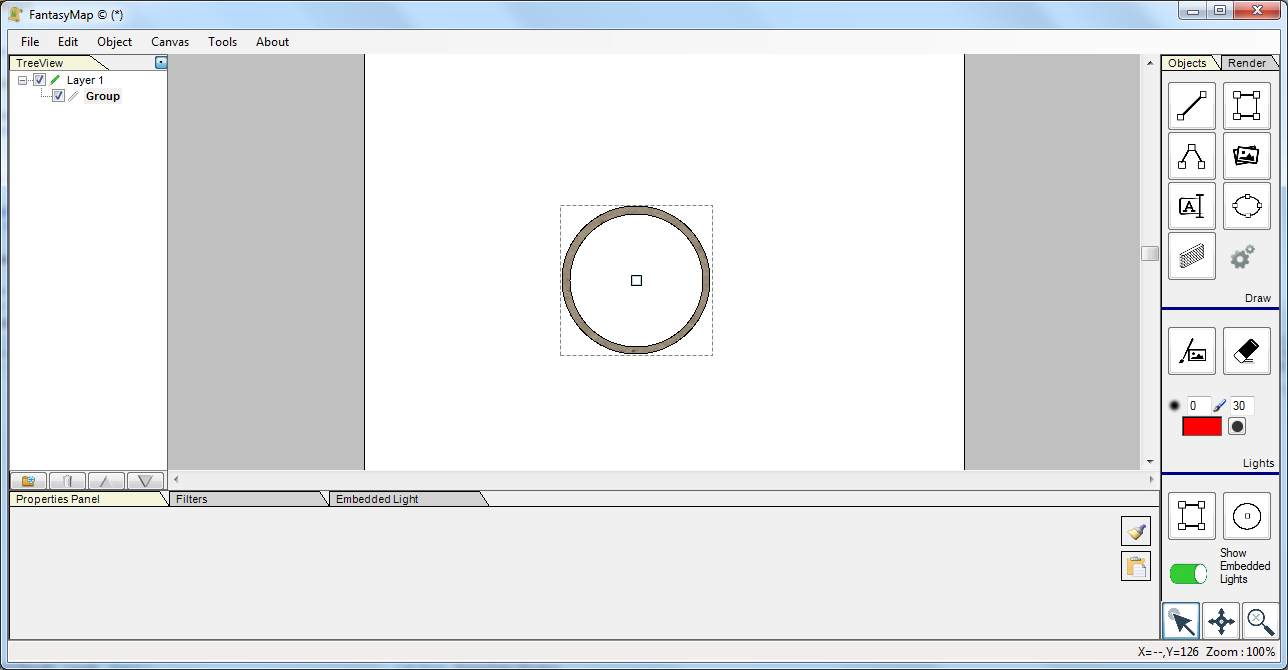
Keeping both ellipse selected, group them in a group (see grouping and ungrouping tutorial).
|
|
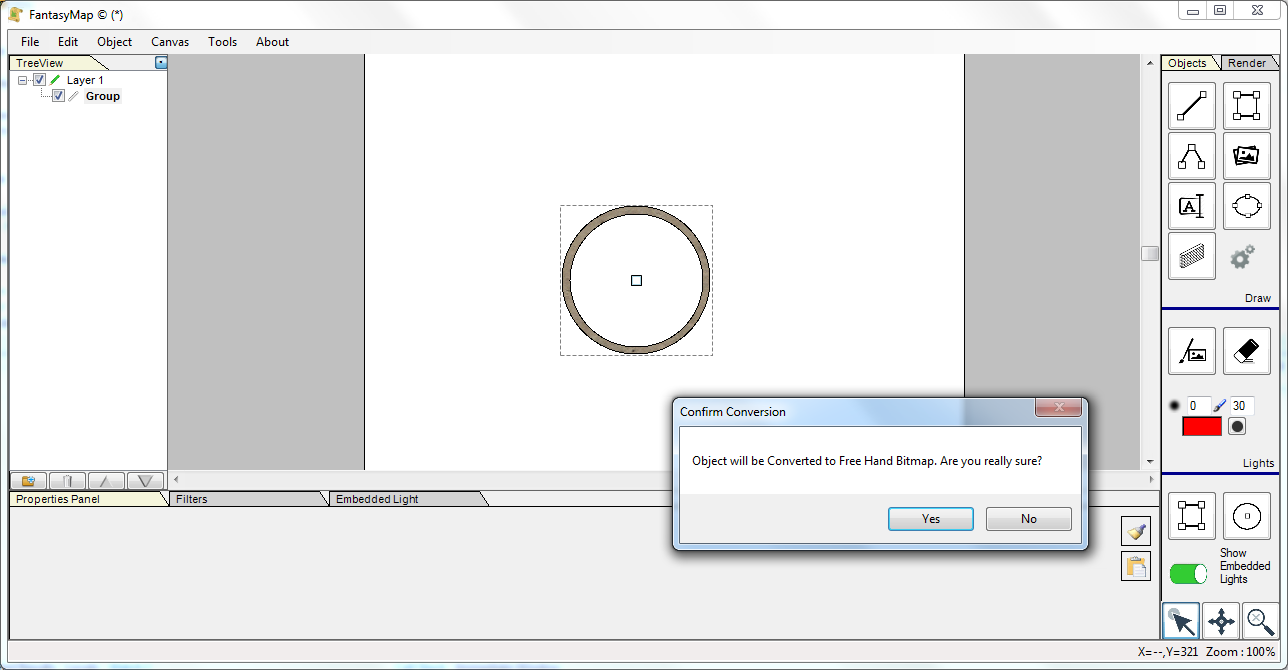
Right click on the group in tree navigation panel on the left of the screen), open the context menu and choose
Convert to Free Hand bitmap. The object will be transformed in a bitmap: you'll lose information about
ellipse size, rendering texture, etc. Now you have just an image in your hand.
|
|
 |
|
|
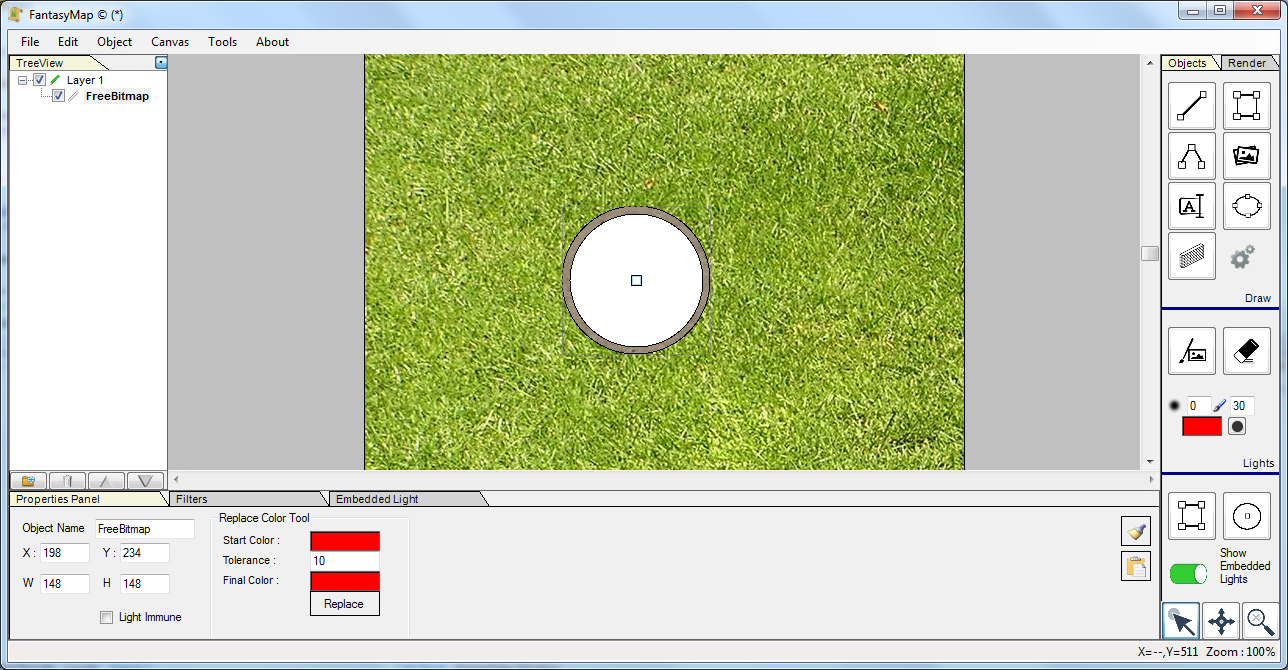
Change the map background to a grass texture. you'll notice that the interior of the tower we're just building
(did we spoiled it?) is white. Let's change the color to transparent.
|
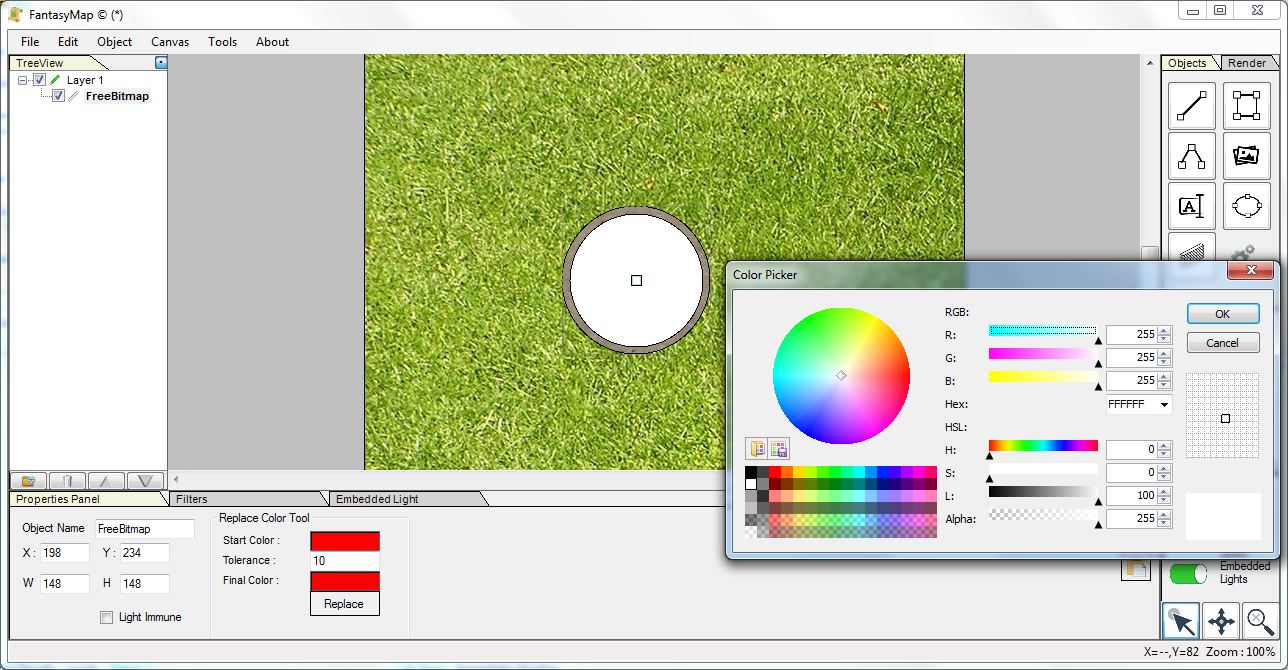
Select the bitmap. In the property panel below will show a group labeled "Change Color". Select white
as starting color, put 10 as tolerance (that means that colors with distance less then 10 to white will be replaced)
and choose a white color with 0 in alpha channel as final color.
Press the Replace button.
|
|
 |
|
|
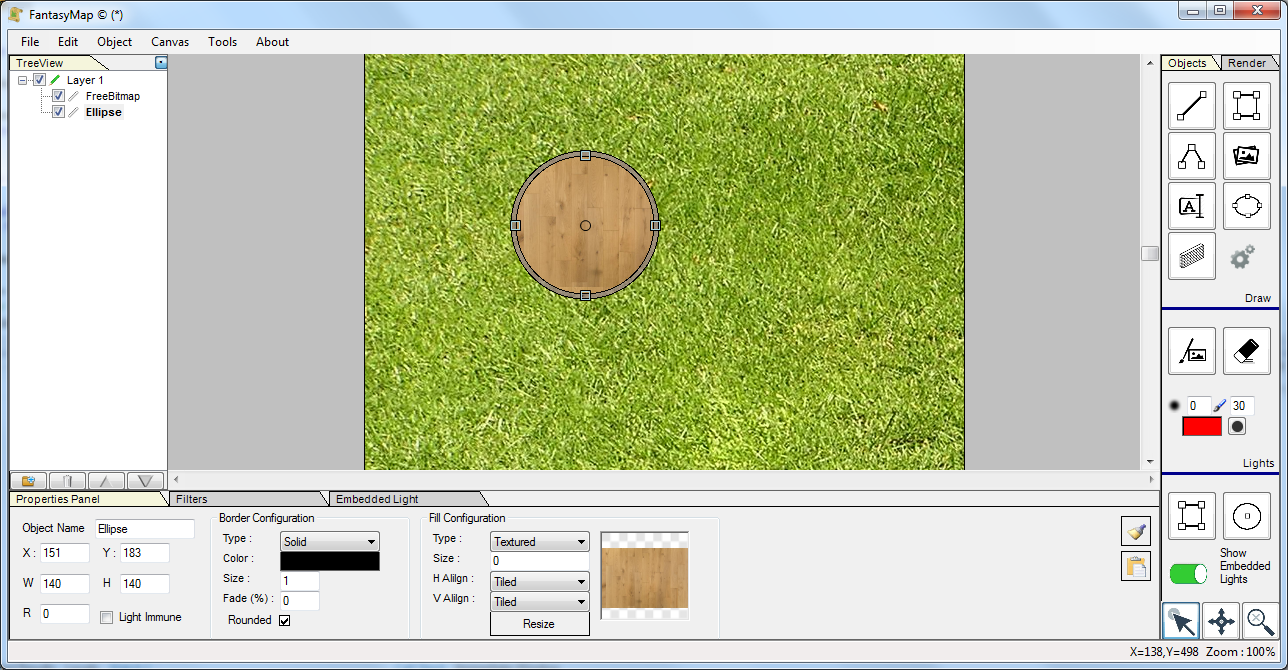
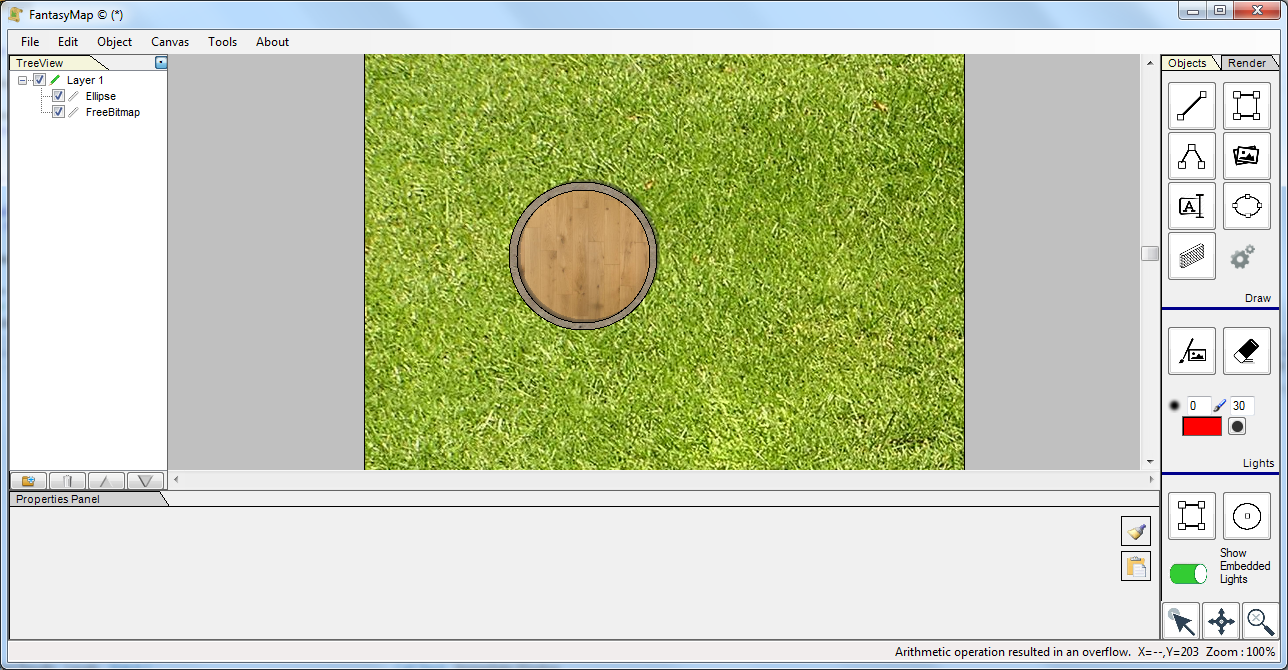
Now you've got a good tower border with transparent inside. Draw another circle, a little smaller then the tower border (140 or 145px),
and align with the first bitmap. Choose a wooden floor texture. Be sure that the floor is painted before the border, to that the
stone circle will cover the wooden part.
|
Select the border bitmap and apply a drop shadow effect in order to give a bit of depth to the image.
Convert also the wooden ellipse to a free hand bitmap.
|
|
 |
|
|
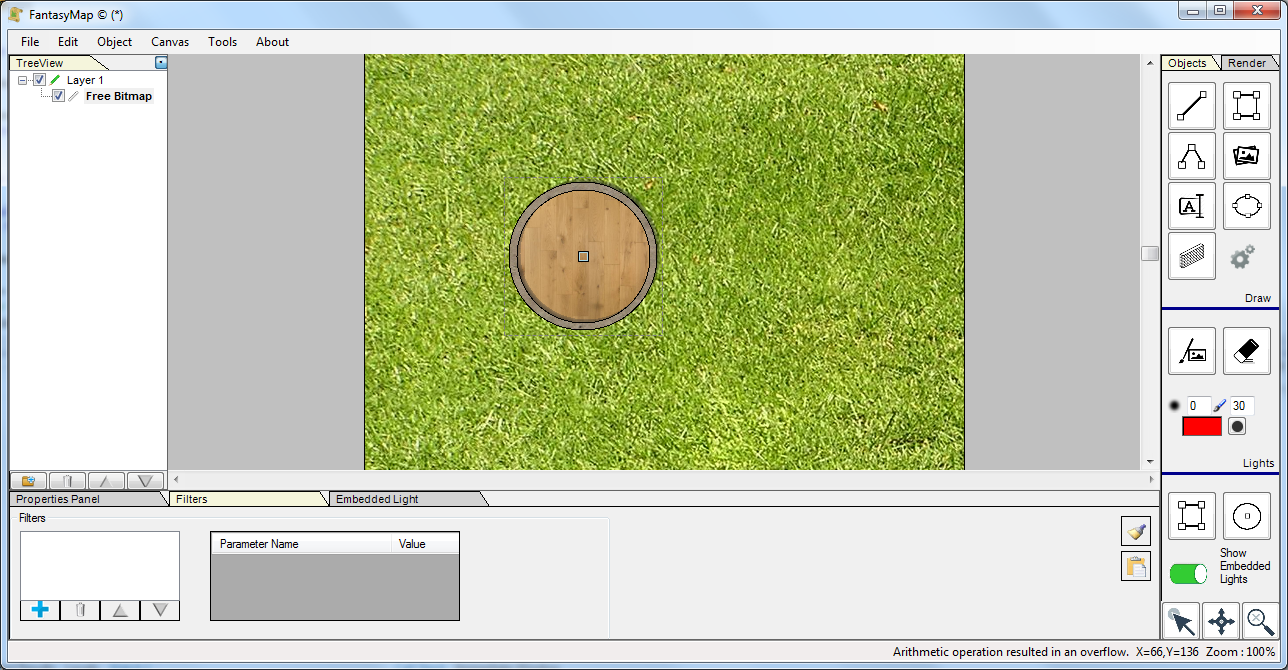
Select both images and use the Object->Merge function. This function will create a new image with the union of the single
object you are currently selecting.
Now you have a single image for your tower. Copy, paste or export it for further use.
|
