
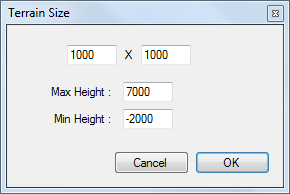
First of all, create a new terrain: from the File menù choose the New Terrain command. FantasyMaps will ask some information about the terrain you are willing to create,
like size (in pixels) and minimum and maximum height.
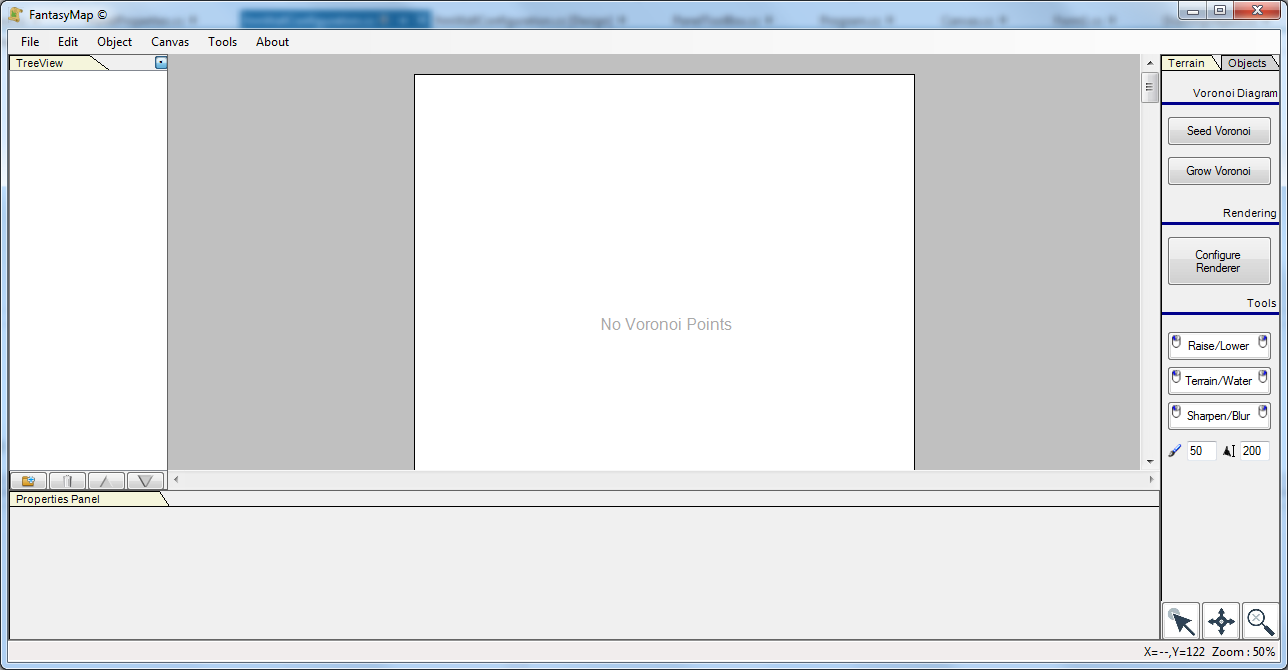
 Once confirmed, a blank canvas with "No Voronoi Points" label in the middle will appear in the middle of the window. |
|
|
You can see that the tool menù on the right changed from normal map editing: we have different tools here, starting from the Voronoi diagram definition. Choose the seed
Voronoi command: another pop-up window will ask you how many Voronoi points create and much randomize the position of them on the terrain. Leave te values as the
program suggest, and confirm.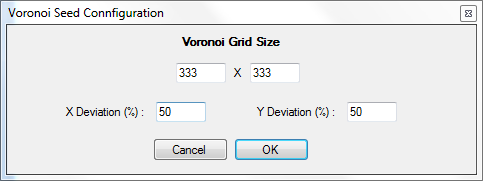
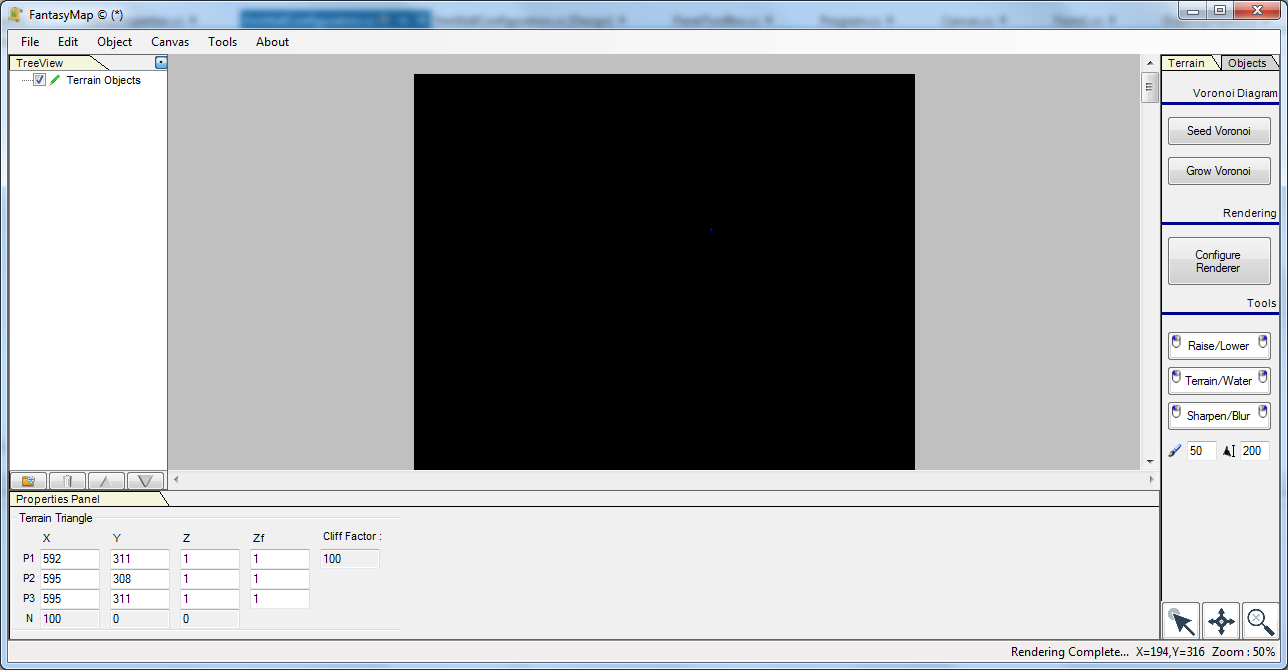
The map will colour of black. It is filled with Voronoi points, but they all have 0 height (like a flat terrain). Moreover, there is no rendering configuration loaded. But let's continue a little bit. |
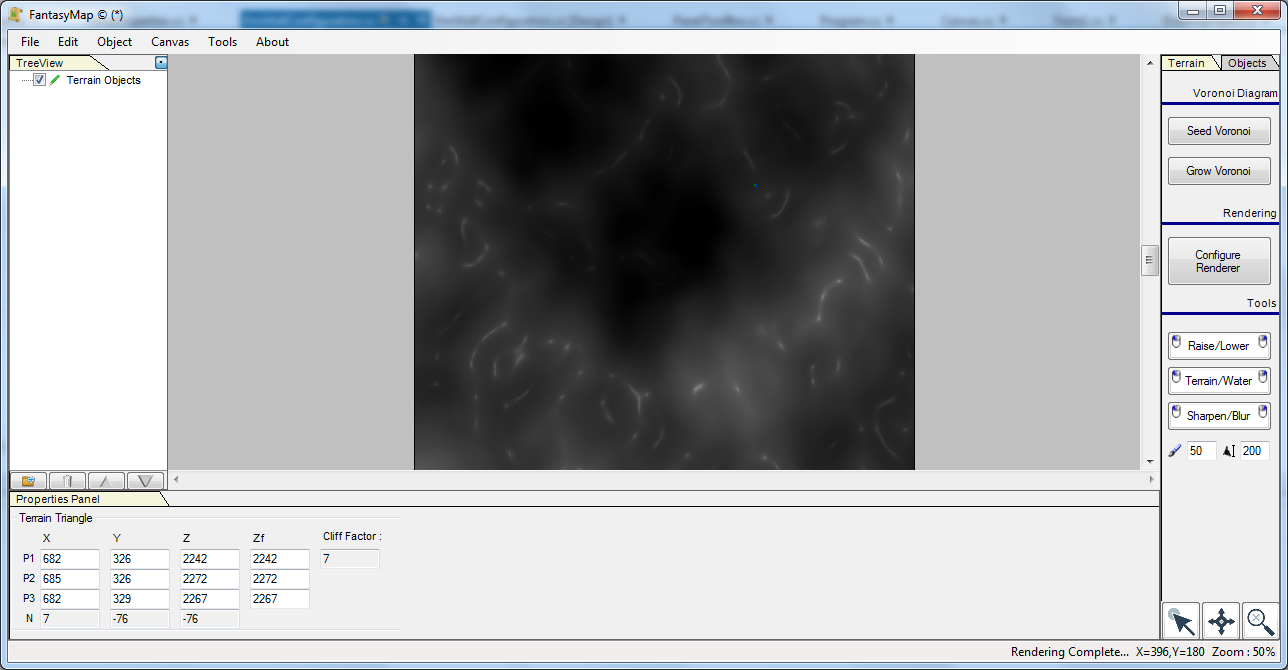
Now we must grow Voronoi points in height: click on Grow Voronoi command, and a popup window with three different choice will appear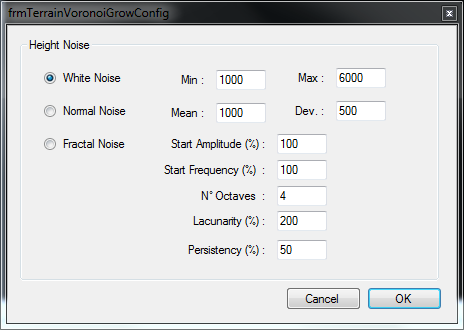 Choose the Fractal Noise option, and leave parameters as standard values. Once confirmed, you'll notice that the map coloured of shades of grey. The Voronoi Points now have some heights (like hills and mountains), but a final step is required: define a colour for each height. |
|
|
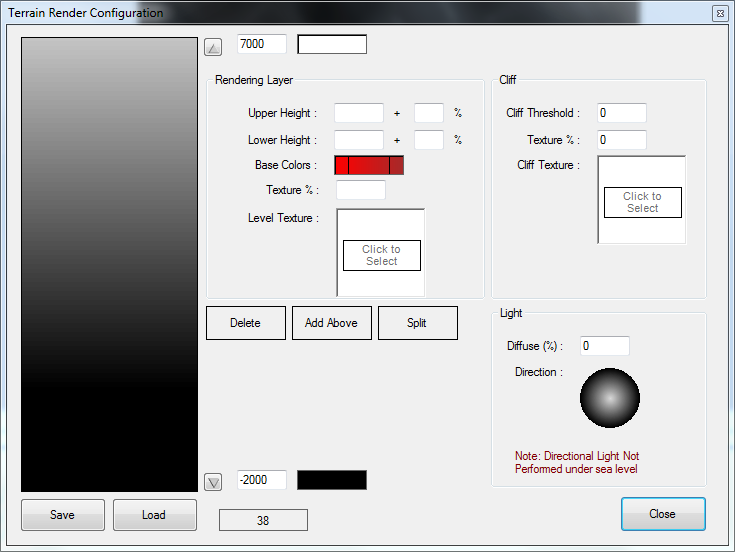
Select the terrain renderer command, and the terrain renderer window will pop-up. From this window is possible to define layers of terrain, each of them with
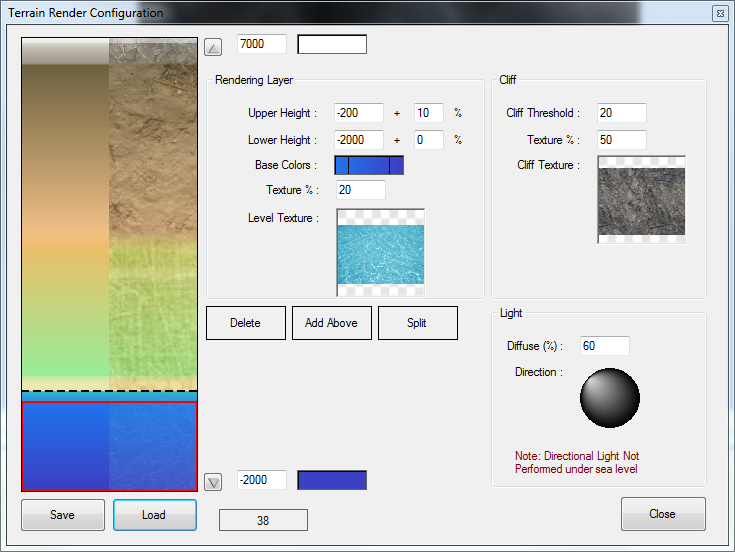
it's own color shade (starting color and ending color), with a percentage of texture watermark. Terrain levels have cross shade effect (for smooth transitions). Moreover, there is a cliff detection system who canghes the texture if the voronoi points define a almost vertical triangle. One of the most important effect is the diffuse light and the directional light, that change the darkness of the hills depending on their normal vector. This form require a little bit of practice, it is not easy to define a good terrain renderer configuration. The good news is that you can save and load the configuration, so you can define two or three different set for all terrains you want to create. |
| A final good configuration could be the one displayed on the right. We have blue shade with water texture mark for under zero layers, and some other lalyers changing from green to brown color, with different textures. |
|
|
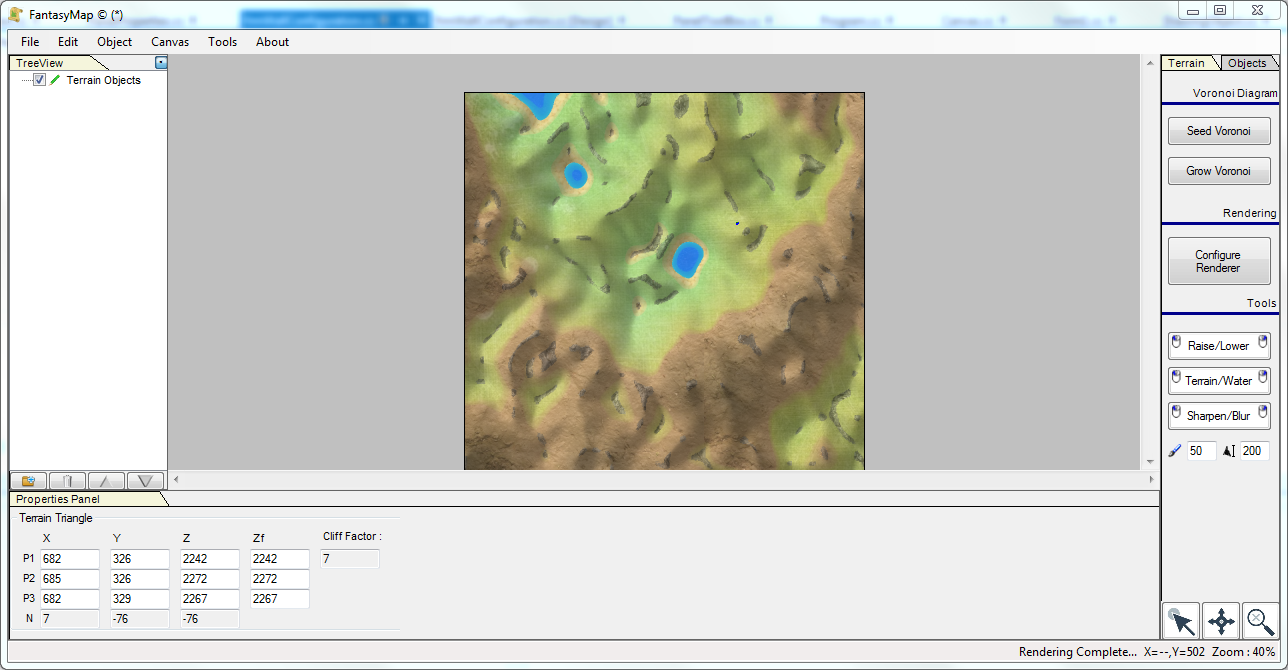
Apllying this rendering to our Terrain will change it heavly, shaping hills and mountains, lakes and seas. |